#Prepare the release
#Select the exact players
- 1Search and filters
Clear leftovers from the previous job, then apply only the approved filter or tag.
- 2Player checkboxes
Select the intended players. For a small job, choose them one by one.
- 3Selected count
Compare the number with the approved target count.
- 4Selected names
Spot-check the first and last names before choosing content.
- 1Clear old search, status and tag filters.
- 2Apply the filters for this release.
- 3Select the intended rows or use Select visible carefully.
- 4Compare the selected count with the approved target count.
- 5Spot-check names from the beginning and end of the selection.
#Understand release options
| Option | Operator question |
|---|---|
| Presentation | Is this the approved release? |
| Target model handling | Are compatibility warnings understood? |
| Player-specific values | Are the intended local values shown? |
| Address rewriting | Is the normal organisation setting selected? |
| Overwrite acknowledgement | Are the listed existing player folders expected? |
Leave organisation-wide defaults unchanged unless the change plan explicitly requires something different.
#Read the dry run
- 1Selected count
Read it again. It must equal the approved number of players.
- 2Presentation
Read the full name and version. Do not rely on remembering what you clicked earlier.
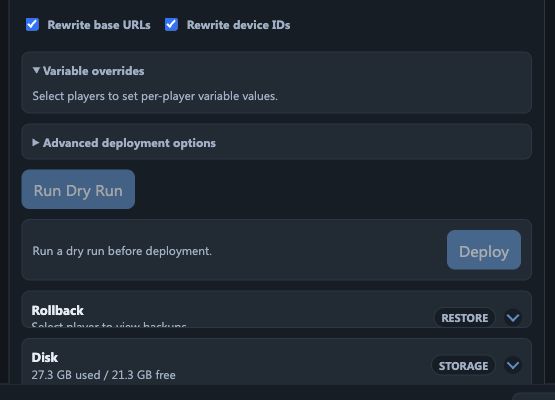
- 3Run Dry Run
Press once. This checks the plan without replacing live content.
- 4Warnings and targets
Read every target result. Explain every warning before continuing.
- 5Deploy
Use only when the dry run is current and clean. Press once, then keep the page open.
The dry run is the most important safety step. It validates the current players, presentation and options without changing active content.
#Apply the content release
- 1Confirm the dry run is current and acceptable.
- 2Choose the apply action once.
- 3Keep the page open while the job progresses.
- 4Read per-player results rather than only the overall banner.
- 5Record any failed or partial targets for targeted follow-up.
#Verify player collection
A successful BrightBridge job means the release was prepared and made available. The player must still contact the platform, collect the content and begin playback.
- 1Return to Players and watch for fresh activity on the intended targets.
- 2Compare the current presentation with the released version.
- 3Use a snapshot, Liveview or physical confirmation on representative screens.
- 4Check every exception individually.
- 5Close the change only when the agreed verification is complete.
#Handle partial results
- Do not repeat the whole fleet release because one player failed.
- Separate players that were offline from players that returned a content error.
- Re-run a dry run for only the affected, corrected targets.
- Preserve the original result and time in the change or incident record.